Pill Shaped Button Graphics
There will never be a "universal design language". With
every tutorial that we offer, I seem to get at least one
email asking, "Why did you do it that way?" Well, simply
because that is the way that seems easiest to me. Under the
same vein, you will no doubt find a variety of ways to
create Pill-Shape buttons in Photoshop. This is the method I
use because it's simple and produces great results. Shall we
dig in?
1. Open a new canvas at 300 x 150 pixels, 72 pixels/inch.
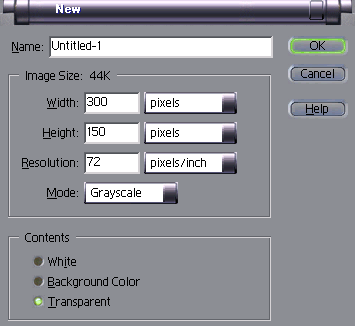
2. Double-check to see that you're in RGB mode, then fill
the canvas with the color of your choice.
3. Make a new layer (click Layer > New Layer).
4. Click on the marquee tool, and enter the marquee options.
You need to have this set to a fixed size of 75 x 75 pixels.
5. Make sure that your marquee is eliptical (right-click the
button and choose the circle), and click anywhere on the
canvas. Move the circle just in from the left edge and
middle of the canvas.
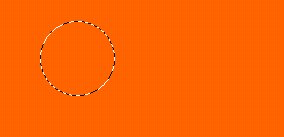
6. Fill the circle with a medium value color. Which color
doesn't really matter at this point, we're going to change
it in a moment.
7. Click View and hover over Show rulers. Before you click
on Show Rulers, make sure that "snap to guides" is checked.
Then click the "Show Rulers" option.
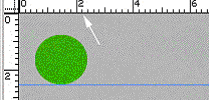
8. Move your cursor to the top ruler. You will see the
cursor become an arrow. Hold down your left mouse button and
drag. As you do this, your cursor changes with a line going
across your canvas. Drag this down to the bottom of the
circle, and release the mouse button. When you're done with
this step, you can hide your ruler (View > hide rulers) if
you don't like them.
9. Zoom in on your canvas, to help with accuracy.
10. Select the rectangular marquee (right click the marquee
button and choose the square). Make sure your options are
still set to fixed at 75 x 75 pixels. Click on the canvas
and move the square into position - the top corners of the
square should just barely touch the circle.
11. Now, hold down Ctrl + Alt keys TOGETHER (don't release
them until your final shape is completed) and hold down the
right arrow on your keypad. Release the arrow key after a
second or two, and the shape should begin to show. If
nothing happens, hold the arrow key until it works. Let go
of all your keys. What you want to happen is for the shape
to nudge into an oblong ... thing.
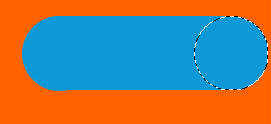
12. Deselect by clicking off the canvas, and resize your
image back to the original (zoom out). You can also hide
your guides (View, hide guides).
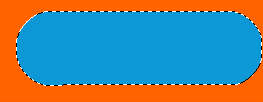
13. Now, we get to change the colors into something more
"artistic". Set your foreground color to something light
(within the shade that you want your button to be) and your
background to a darker shade. Use the magic wand to select
the outline of your button.
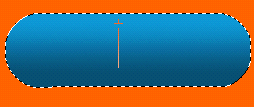
14. Select your gradient tool. Run a gradient line from the
top center to the bottom center of your button. You may have
to re-gradient a couple of times to get the fade you like,
but will end up with something similar to what I have below.
15. I usually run the blur tool over the edges, carefully,
so that there aren't any jagged lines. Then copy-paste it to
a canvas with a transparent background (or your web page
background color) and save.

So that's the pill-shaped button... What else can we do with it? Read on
to change the "look".

The pill-shaped button by itself is pretty cool. But I've
never learned to leave good enough alone. So now let's make
it even cooler.
16. Make a mouse-over effect of a "depressable button".
First, select the whole button. I usually hold the Shift key
while I hit the gradient shades with the magic wand.

17. Click the "Select" button in your toolbar. From the menu
click Modify, then click Contract and enter 6.
18. Again, click the "Select" button, and choose "Feather",
enter 2.
19. Now, click "Edit", and choose Transform, Rotate by 180.
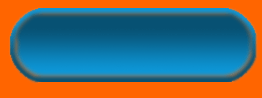
You can now save this "depressed" button as your mouse-over
image! But don't deselect yet, there's still more we can do.
To create an "inset" or "border button", follow the next
steps from where you're at.
20. With the inner portion of the button still selected,
click "Select", choose Modify and Contract, enter 4.
21. Click "Select" and choose Feater, enter 1.
22. Click "Edit", and choose Transform, Rotate by 180.
23. Deselect it, and you should have a button like this:

Three buttons for the price of one ;-). There's still more
that you could do with this, including the many text effects
(engraved, maybe?) that you can create. Just experiment -
with the foundation, you are limited only by your
imagination.
|




 advertisment

 advertisement

 Host With Us: HostingHelper.co.uk From Only $5.00p/m