Custom Textures, Killer Type
The topic this week revolves around and then dives right
into the area I'm focusing on now. Photoshop 6 provides many
texture/pattern sets, but these may not provide the realism
you are looking for in your work, so we are going to look at
creating and saving your own textures for application to
your design projects. Plus we will make something cool to
boot!
A few years ago I started accumulating
clip art packs, and as a result there are over a million
images floating around on various CDs in my office. As I
create most of my designs from scratch these CDs have been
unused for the most part. With the ability to save custom
textures for instant application in layer styles, I now have
a use for these images as I will now demonstrate.
First I want to find a few images and open
them up in Photoshop. I've found a fewhat I think will look
great on a design, so I'm just going to set them aside. You
may want to crop or resize the images to prevent a nasty
overlap line. We aren't going to make these seamless, so
this is a concern you should be aware of.
With the images chosen and set aside (I
generally use 12-18 images per set), open a new image,
create a new layer and enter some large type. I'm using a
font size of 160 pts, as I want to see up close and personal
what my new textures will look like. The examples look
smaller here, but on my monitor they are quite large.

Now we want to clear out whatever patterns
may be residing in the Layer Styles, so with your text layer
action, click the Layer Styles icon at the bottom. Click on
Pattern Overlay.
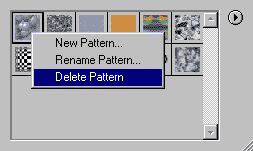
You will see a thumbnail of a pattern in the
center, with a vertical arrow button next to it. Click the
arrow, and begin deleting the patterns. On a PC you simply
right click and scroll down to Delete Pattern... I'm sorry
to say I do not know the process for Mac users.
Once these are cleared out, we are ready to
start editing and defining our new patterns. Select one of
the photos you opened earlier. How would this work for a
texture? Does the brightness/contrast need to be tweaked?
Maybe it would look cool inverted?
As I've been making dozens of these sets,
I've set up my Actions Palette to help me with the process.
Here's what mine looks like:
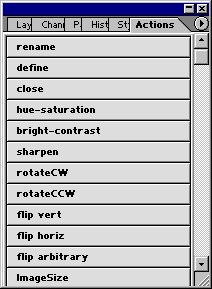
From the actions palette I'm now able to
manipulate, define, and close my future texture with just a
few button clicks. After I've saved/defined and closed
several patterns I then open a new batch of images, edit
them, and define. Once you get the hang of it you can create
a set in a matter of a couple minutes.
NOTE: The �Rename' action at the top of the
list is basically an empty action. Though it performs no
functions, it allows me to use the Batch option to rename
and resave hundreds of images. It is only for reference, as
the batch command does all the processing required.
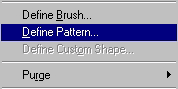
Let's define a pattern. Select a photo. Go
to Edit>Define Pattern.
You may now run through this process with
all of your images. Once done, go back to the layer styles
of the text image, open the textures and you should see all
of your new patterns in their own group.
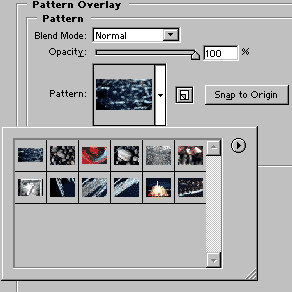
With your type moved over so that you can
see the changes, click on each texture and see the effect
change on your image. Pretty cool stuff!
Ok, once you are satisfied with your texture
set, you will want to save them. With the textures open,
click the small arrow to the right. From this menu you can
save the set for future use. A very nice thing about this
feature is you can now apply the patterns to your Layer
Styles. If you send your styles to others, remember they
will m=need the texture pack as well.
I'll close out this week with a couple
examples of my patterns applied to text. Next week we will
look at this in depth, so here's a teaser.

I also have a column related to this subject
online at the Photoshop Caf�, and you may download one of my
texture packs from my website for free.
|




 advertisment

 advertisement

 Host With Us: HostingHelper.co.uk From Only $5.00p/m