Using Masks for Seamless Backgrounds
Ever wonder where all those seamless backgrounds come from? How does the
creator get them to blend so...well, seamlessly? If you've
tried to create your own, I'm sure you've perused at least a
dozen tutorials on the subject. Some may have garnered
excellent results, and some not so much. I'm not going to
grade the quality of anyone else's tutorials here. I know
from personal experience that a single error to a technique
or misplaced step will award the writer a small avalanche of
email. Been there, but I'm not complaining. You folks keep
me sharp, and I like it that way!
This week I'm going to
give a personal twist to the ol' seamless background
creation niche. I've warmed up the digital cam (my trusty
Mavica... forgive me Jim Patterson, but I love that camera)
and snapped a few shots. Let's see if we can't create
something interesting.
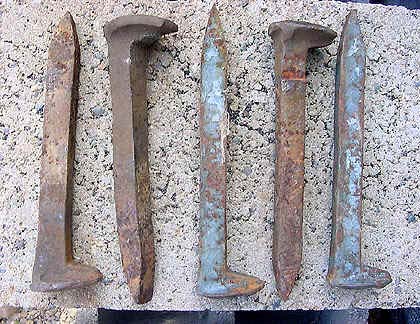
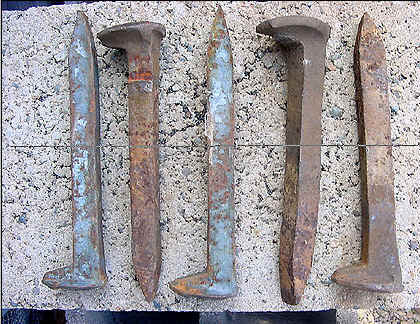
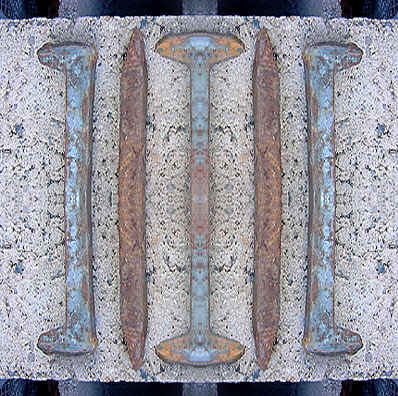
I call this one 'Spikes
On Cinderblock'... my attempt at industrial photography.
1. First off, duplicate
the background layer by dragging it to the new layer icon on
the bottom of the layers palette.
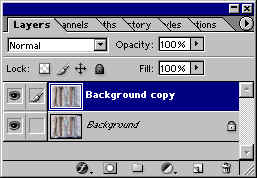 2. Select the copied
layer. Go to Edit>Transform>Flip Horizontal.
2. Select the copied
layer. Go to Edit>Transform>Flip Horizontal.
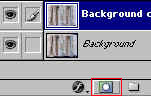
3. Click the 'Add a Mask'
icon on the bottom of the layers palette.
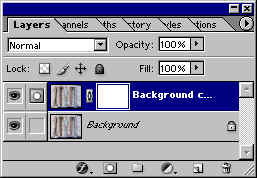 3. If you are unfamiliar
with masks, you will notice that the foreground/background
colors are white/black respectively. We are about to apply a
gradient to the layer mask, which will render half the layer
visible (that covered with white) and have will reveal the
layer beneath (the black portion of the gradient).
3. If you are unfamiliar
with masks, you will notice that the foreground/background
colors are white/black respectively. We are about to apply a
gradient to the layer mask, which will render half the layer
visible (that covered with white) and have will reveal the
layer beneath (the black portion of the gradient).
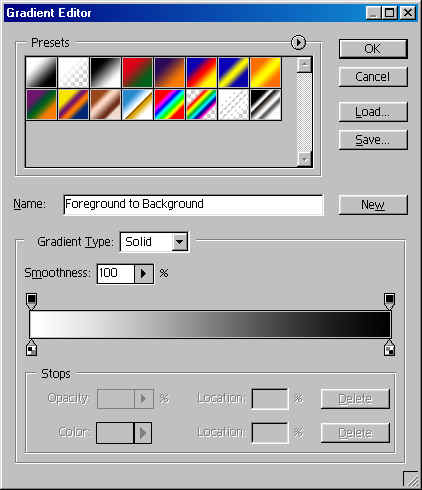
 4. With the Mask
selected, click the gradient tool. Click inside the gradient
in the options bar to bring up the gradient editor.
4. With the Mask
selected, click the gradient tool. Click inside the gradient
in the options bar to bring up the gradient editor.
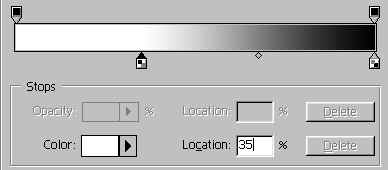
 5. Click the white color
stop and manually enter '35%' for the location. Select the
black color stop and manually enter '65%' for the location.
5. Click the white color
stop and manually enter '35%' for the location. Select the
black color stop and manually enter '65%' for the location.
 6. Click the Mask field
for the copied layer in the Layers Palette. As strait as you
can, draw the gradient from left to right across the layer.
6. Click the Mask field
for the copied layer in the Layers Palette. As strait as you
can, draw the gradient from left to right across the layer.
 7. Take a look at your
image. You should see something like this.
7. Take a look at your
image. You should see something like this.
 8. With the top layer
still selected, hit Command/CTRL+E to merge the layers
together.
8. With the top layer
still selected, hit Command/CTRL+E to merge the layers
together.
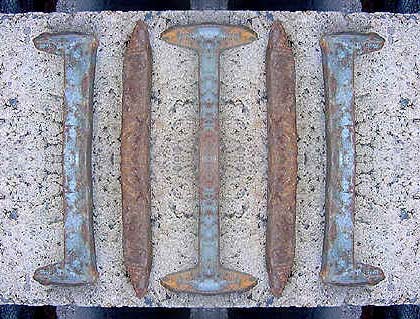
9. Duplicate the
background again. We are going to follow the same procedures
as above, only this time we will flip the new layer
vertically instead of horizontally. Also, this time apply
the gradient to the mask from top to bottom rather than left
to right. When completed, it should look like this:
 10. Merge the layers
again.
10. Merge the layers
again.
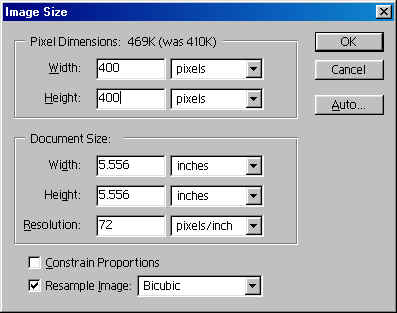
11. Go to
Image>Adjust>Image Size. Deselect 'Constrain Proportions'
and enter identical measurements for the width and height.
 Here's the image:
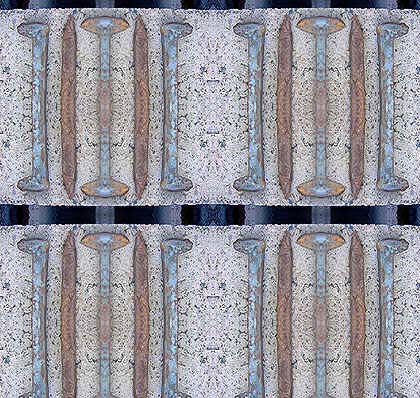
 So is it seamless? Well
here's a quick test. First. I'll reduce the size again.
Next, I'll go to Edit>Define Pattern. Third, I'll create a
new document. I'll then test my background by filling the
new document with the new pattern.
So is it seamless? Well
here's a quick test. First. I'll reduce the size again.
Next, I'll go to Edit>Define Pattern. Third, I'll create a
new document. I'll then test my background by filling the
new document with the new pattern.
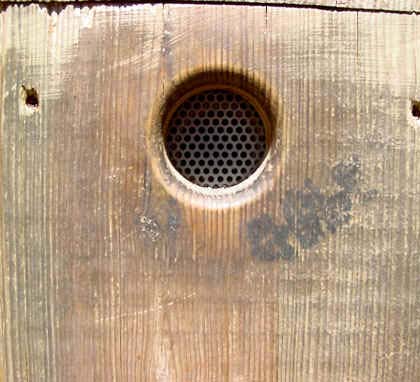
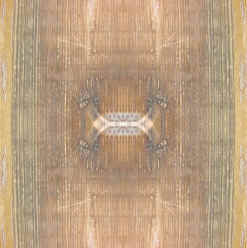
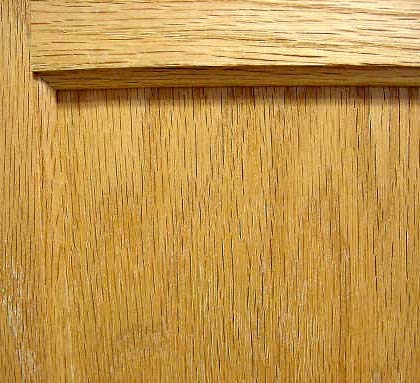
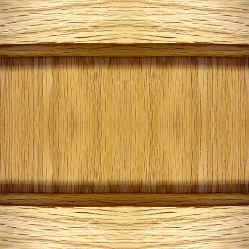
 Try saving the above
tutorial as an action. Here are a couple additional
examples:
Try saving the above
tutorial as an action. Here are a couple additional
examples:
 I hope you have fun with
this one. Take care, and I'll see you next time!
I hope you have fun with
this one. Take care, and I'll see you next time!
|




 advertisment

 advertisement

 Host With Us: HostingHelper.co.uk From Only $5.00p/m