Tutorials & Script Homepage
Photoshop Basics 8to14
Using Quick Masks
Intro to the Patch Tool
Power of the Crop Tool
Natural Brushes
Saved Workspaces
Brushes Palette: Intro (Part 1)
Brushes Palette: Dynamics (Part 2)
advertisment
advertisement
advertisement
Host With Us: HostingHelper.co.uk From Only $5.00p/m
Spotted an Error ? Let us Know
100's more FREE templates at FreeWebTemplates
Looking for a new Web Host ?
Free templates from TemplatesLand
Professional High-End Templates
TemplateBox.com more FREE templates
Free Flash Templates and Intros
advertisment
advertisement
 
PHOTOSHOP BASICS TUTORIAL NUMBER : 08
Please Click Here, and Help Keep This Site FREE to Use
 
Please click on our sponsors advert to the right if you download or use anything from this page.
Thank you for your help.
This tutorial has been created by: Josh Spivey Planetphotoshop.com

Using Quick Masks

Quick masks are a handy little Photoshop- feature that many people don’t even know about. If you’ve never heard of quick masks, this article is going to show you how to use the basic features of the feature.

When you want to use a mask in a more traditional way, use a quick mask. It works very similarly to the way a mask in the real world works. Say you were painting a room and you didn’t want to get paint on the trim. You would use tape right – masking tape? Quick masks act very much the same way. Rather than create a mask layer, that works to show or not show a layer below it using an alpha channel, quick mask is much more intuitive to understand. Let’s show an example.


I am going to start with this basic shape that Photoshop 7 ships with. I have this shape on its own layer. To enter the quick mask mode, simply hit the letter Q on your keyboard. You won’t see anything happen, but your history palette will show that you have entered quick mask mode.

Now using the default color swatches (black and white), select your gradient tool and swipe a gradient from the upper left hand corner to the lower right.



Notice how the pink gradient appears after you do this. This is the mask. Think of it as masking tape with holes in it. The gradient acts as a way to go from small holes to large holes. So if you were painting, more paint would go through the large holes than the small holes and you would get a gradient effect with your paint.
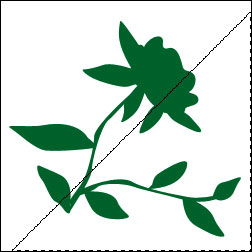


Now to exit quick mask mode, hit the Q key again. Photoshop will give you a selection based on your quick mask. I am going to use my mask to make a split-screen effect with my flower. I simply go Image -> Adjustments ->Hue and Saturation. Make the necessary changes, and you can see the result.



Now you can deselect the image area and you are done. It’s as easy as that. The best part about this is that you don’t have to take all that masking tape off after you get done!

Now I encourage you to experiment with this and see what you can do with it. Try different filters while you are in quick mask mode and you will get interesting effects. Talk to you soon.

Web Hosting  |  Membership website templates  |  Reliable UK Web Hosting  |  asp.net web hosting  |  Art Web Templates  |  Cheap Flight Deals  |  Free Web Hosting  |  UK Web Hosting Company  |  Coursework Writing  |  Reseller Hosting  |  tarot  |  Cheap UK Web Hosting  |  Fitness Blog  |   cell phones  |  Web Design  |  Low Cost Domain Names  |  ASP.NET Hosting  |  Website templates  |  cursos informatica  |  tienda informatica online  |  UK Link Directory  |  Austin Web Design  |  Flash Templates  |  Factory  |   Canada Web Hosting  |  Flash Intros  |  Web Templates  |  website designers  |  cheap web hosting  |  Resume templates  |  Corporate Logo Design Service  |  Bathroom Shower  |  website hosting rating  |  Website Templates  |  Bespoke Software Development  |  Domain Name Registration  |  Free Website Templates  |  web hosting services  |   Dedicated Server  |  UK Web Hosting  |  Dating Software - aeDating 4.1  |  Flash Templates  |  Website Templates  |  Power Saver  |  China Wholesale  |  Flash templates  |  cctv cameras  |  Web Hosting Companies  |  Lolita Dresse  |  china wholesale  |  Sharepoint Hosting  |  Canadian Web Hosting  |   Cheap Web Hosting Deal  |  Linux Hosting  |  Web Design uk  |  Web Hosting  |  Business web directory  |  Electronics  |  Free domain names  |  Best UK web Hosting  |  Shower Enclosures  |  

 
advertisment
advertisment
advertisment
advertisment
  Top-end templates
  Flash Templates
  Web Hosting UK
  Made-in-China.com
  Web Design Tips
  Link Bid Directory
  Web Hosting
  Web hosting reviews
  Website Design
  eCommerce Web Design
  Top web hosting
  Stock Photography
  Bildagentur
  Web Design
  Reseller Hosting
  SEO Services India
  Company Logos
  Website Templates
  Website Templates
  Web Hosting UK
  templatebox.com
  freewebtemplates.com
  templatesland.com
  topfreegraphics.com
  freegraphicland.com
  free-templates-layouts
  Logo Design Software
  Layouts4Free
  Webmaster Resoucres
  Web Templates Factory
  Free Web Templates
  Free Templates Catalog
  Web Templates
  Reseller Web Hosting
  Stock Photography
  Animations-galore.com
  4print.com.au
  Host Review
  Web Hosting Host Color
  Dedicated Servers
  FlashTemplateDesign
  ZeroDollarTemplates
  Killersites.com
  how-to-build-websites
  Build a free website
  web Hosting
  Business Logo Design
  Templates Favpage
  webmastermind.de
  flasheasy.com
  More Featured Sites