|
How Web Pages Work
Have you ever wondered how a Web page works? Have you ever wanted to create your own Web page? Have
you ever heard the word "HTML" and wondered what it means? If so, then read on...
Setting the Stage
At this moment, it is nearly guaranteed that:
- You are sitting at your computer.
- You are using a Web browser to read this page, and that browser is either Netscape Navigator or
Microsoft Internet Explorer.
- You want to learn how Web pages work, and perhaps learn the art of creating your own pages.
Because you are sitting at a computer, you have a Web browser and you possess the desire to learn,
you have everything you need to get started. You can learn HTML and experiment with your Web browser
to find out how to create any kind of Web page you can imagine.
In order to talk about Web pages and how they work, you will want to understand four simple terms
(and if some of this sounds like technical mumbo-jumbo the first time you read it, don't worry):
- Web page - A Web page is a simple text file that contains not only text, but also a set of
HTML tags that describe how the text should be formatted when a browser displays it on the screen.
The tags are simple instructions that tell the Web browser how the page should look when it is displayed.
The tags tell the browser to do things like change the font size or color, or arrange things in
columns. The Web browser interprets these tags to decide how to format the text onto the screen.
- HTML - HTML stands for Hyper Text Markup Language. A "markup language" is a computer language that
describes how a page should be formatted. If all you want to do is display a long string of black
and white text with no formatting, then you don't need HTML. But if you want to change fonts,
add colors, create headlines and embed graphics in your page, HTML is the language you use to do it.
- Web browser - A Web browser, like Netscape Navigator or Microsoft Internet Explorer, is a computer
program (also known as a software application, or simply an application) that does two things:
- A Web browser knows how to go to a Web server on the Internet and request a page, so that
the browser can pull the page through the network and into your machine.
- A Web browser knows how to interpret the set of HTML tags within the page in order to display the
page on your screen as the page's creator intended it to be viewed.
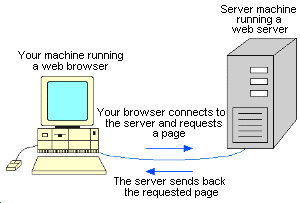
- Web server - A Web server is a piece of computer software that can respond to a browser's request for
a page, and deliver the page to the Web browser through the Internet. You can think of a Web server as an
apartment complex, with each apartment housing someone's Web page. In order to store your page in the complex,
you need to pay rent on the space. Pages that live in this complex can be displayed to and viewed by anyone
all over the world. Your landlord is called your host, and your rent is usually called your hosting charge.
Every day, there are millions of Web servers delivering pages to the browsers of tens of millions of people
through the network we call the Internet. Read How Web Servers Work for details on this process.
It is extremely easy to experiment with Web pages without using a server. Your
browser can view the Web pages you create from your personal machine. Once you understand how to create
your own pages, it is likely that you will want to put them "out on a server," so that people around the
world can load your pages and read them. We will talk about how to do that at the end of this article.
Viewing the Source
Let's take a look at the "guts" of a Web page. This is the original text and HTML tags typed by the author
and interpreted by the browser to produce the Web page you actually SEE on the Internet. With your mouse,
right-click on any blank portion of this page and choose "View Source." A new window will appear, displaying
words and characters, some of which may look pretty technical and foreign. These words and characters are,
collectively, the HTML programming code you are about to learn. Each element within that code is known as
an HTML tag. Don't be intimidated by how complex it looks -- you'll be surprised at how easy it really is.
When you are done looking at the page's source code, simply close out the source page to return to
this article.
You can look "behind the scenes" of almost any page on the Internet this way. When you become more involved
in Web designing, you'll probably find yourself viewing the sources of complicated Web pages in order to
learn the codes that the authors, or page designers, used to create such interesting arrangements.
Now, let's learn what many of the tags mean, and start creating a simple page.
The HTML Tag
An HTML tag is a code element that tells the Web browser what to do with your text. Each tag will appear
as letters or words between a < (less than sign) and a > (greater than sign).
Example: <center>, <body>
To tell the Web browser to "end" doing what you just told it to do, a forward slash is used
in the closing tag:
Example: </center>, </body>
Most tags come in matched "beginning" and "ending" pairs, but this is not an absolute rule.
Any Web page you create will contain the following tags at the start of the page:
- <HTML>: tells the Web browser that this is the beginning of an HTML document
- <HEAD>: tells that Web browser that this is the header for the page
(you'll learn later what goes between "HEAD" tags)
- <TITLE>: tells the Web browser that this is the title of the page
- <BODY>: tells the Web browser that this is the beginning of the Web page
content -- everything you want to say and see on your page will follow this tag.
The tags needed to end any Web page are:
Creating a Simple Page
There are many ways to create Web pages. Hundreds of companies have created tools to help with the
process in one way or another. Our goal here, however, is to understand how Web pages really work,
rather than have a tool hide the process from us. Therefore, we will use the simplest tools
possible -- the ones already on your machine.
On your machine you have a program, or application, that can create simple text files.
On Windows machines, this application is called Notepad. On a Macintosh, this program is called
SimpleText. If you cannot find these programs, it is also possible to use a basic word processing
program, like WordPerfect or Microsoft Word.
Note:
- In a Windows 95/98 environment, click the Start button, click Programs, click Accessories and
click Notepad.
- In a Windows 3.1 environment, click Accessories (in the Program Manager) and click Notepad.
- In a Macintosh environment, click Macintosh HD, click Applications and click SimpleText.
Once you have the proper program open on your screen, type (or cut-and-paste) the following HTML
text into the window:
<html>
  <head>
    <title>My First Page</title>
  </head>
  <body>
    Hello there. This is my first page!
  </body>
</html>
Whether you put the tags and text side-by-side, row-by-row or indented will not
make a difference in how the text is displayed in a browser window. Whether you use uppercase or lowercase
letters within your tags also does not make a difference.
Now you need to save this file somewhere so that you can find it in a moment. Save it to the desktop,
or, better yet, to a directory that you set up to hold all of the pages you are going to create. Save it
to the filename first.html.
Next, open the page in your Web browser (e.g., Microsoft Internet Explorer or Netscape Navigator). All
Web browsers have a way to open a file stored on the local machine. In Internet Explorer and Netscape,
select Open File from the File menu at the top of the window. Open the file first.html. When you
open it in your browser, it will look something like this:
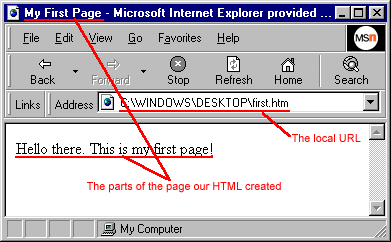
Three things are identified in this figure:
- You can see that the page has the title "My First Page."
- You can see that the page's body contains the words "Hello there. This is my first page!"
- You can see that the URL being displayed in the address window is C:\WINDOWS\DESKTOP\first.html
from the local hard disk, rather than the usual http://... that a URL would contain if we were
receiving the page from a server on the Internet.
By looking at the HTML text that makes up your first page, you can see exactly how the page got its
title and body.
Now that you have created and viewed your first Web page, you are well on your way to becoming a
Web page pro. The key to knowing everything about how a Web page works is to learn more and more of
the HTML tags that let you customize your pages. You'll also want to learn about tools that can
help you create tables, frames and graphics for your pages. This Web page series will guide you
through all of the information you need.
<< Previous Beginners Article |
Next Beginners Article >>
Beginners Main Menu 1 to 7 |
Beginners Main Menu 8 to 14 |
Beginners Main Menu 15 to 21
|





 advertisment

 advertisement

 Host With Us: HostingHelper.co.uk From Only $5.00p/m